A job's scheduling mode decides where staff and subcontractors are booked: onto individual line items, or onto the job as a whole. Each job has its own mode.
Scheduling mode does not affect plan dates. Where those are kept is the job's planning mode, which is set separately.
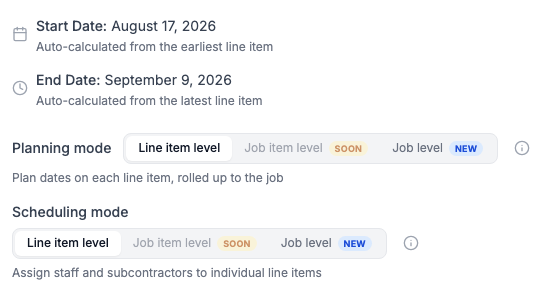
The options
- Line item level - staff and subcontractors are booked onto specific line items, and clock in against the line item they are booked on. Each line item shows its own scheduled and tracked hours. This is the default for a new account.
- Job level - staff and subcontractors are booked onto the whole job. You still choose who works which days. Everyone booked clocks in against the job and works from the Job Sheet on the mobile app, which lists every line item and lets them tick work off.
Job item level is shown with a Soon label and cannot be selected.
What it affects
On a job scheduled at line item level:
- On the Job Items tab, the strip under each line item has a Scheduled side with an Assign button.
- Line items read Unscheduled or Scheduled, and job items Not Scheduled or Scheduled, depending on whether anyone is booked.
- In the Planner, the job's line items appear one by one.
On a job scheduled at job level:
- The job header's Overview tab has a Staff Assignments section with an Assign staff button, and the header gains a Team - job level tile.
- Line items and job items read To do until work starts, then In progress, In review and Complete.
- In the Planner, the job appears as one card under Jobs (job level), and its line items are not listed.
Check which mode a job is in
Open the job. On the job header's Overview tab, Scheduling mode shows three options with the current one highlighted. Click the i button beside it to compare them.
Change a job's scheduling mode
Who can do this: owners, admins and office staff.
- Open the job and click the Overview tab in the job header.
- Under Scheduling mode, click the mode you want.
There is no Save button. The change applies straight away and a Scheduling mode updated message appears.
If the job has bookings under the current mode that nobody has clocked into, the change is refused and the message says how many. Click Clear scheduled assignments and switch now to remove those bookings and switch in one step. Subcontractor bookings that have not finished are removed too. Bookings someone has clocked into, and past subcontractor bookings, are kept.
A job cannot move to job level while it has a form enforced before a line item starts. Deactivate that form assignment first. See Add a Form to a Job.
The default for new jobs
New jobs take the mode set in Settings > Features > Default scheduling mode for new jobs (click your avatar in the top-right corner, then Settings). After changing it, click Save Changes at the bottom of the Settings window. It applies to jobs created afterwards, including jobs converted from a quote, and never changes an existing job.
If a job's mode is different from the default, a line under Scheduling mode offers Make it the default. Clicking it changes the account setting for every new job.
Related articles
- Planning Modes - plan dates per line item or for the whole job
- Book Staff onto a Job - book people in either mode
- Plan Dates and Scheduled Dates - the two sets of dates on a job
- Staff Time Logs - what counts as clocked into