Connect Claude, the AI assistant made by Anthropic, to your Trades Panel account. You can then ask Claude about your jobs, quotes, contacts and tasks, and ask it to make changes for you.
Who can do this: the account owner, and admins the owner has switched on. Office staff and field staff cannot connect. Plan: Crew, Business or Pro, including a free trial of one of them. The Free plan cannot connect.
Claude acts as the person who connected it. It sees what you can see in Trades Panel and saves changes under your name. This is separate from CrAIg, the assistant inside Trades Panel, and uses no AI credits. See What CrAIg Can Do.
Connect Claude
- Sign in to Claude in your web browser.
- In Claude's settings, open Connectors and choose to add a custom connector.
- Give it a name you will recognise, such as Trades Panel.
- Paste this address as the connector URL:
https://www.tradespanel.com/api/mcp - Add the connector, then click Connect next to it. The Trades Panel sign-in page opens.
- Sign in to Trades Panel with your usual email address and password. If you are already signed in, this step is skipped.
- Check the Authorize access page, then click Allow.
You are sent back to Claude, and the connector shows as connected. The connector belongs to your Claude account, so it is also available in the Claude app on your phone or tablet.
The Authorize access page
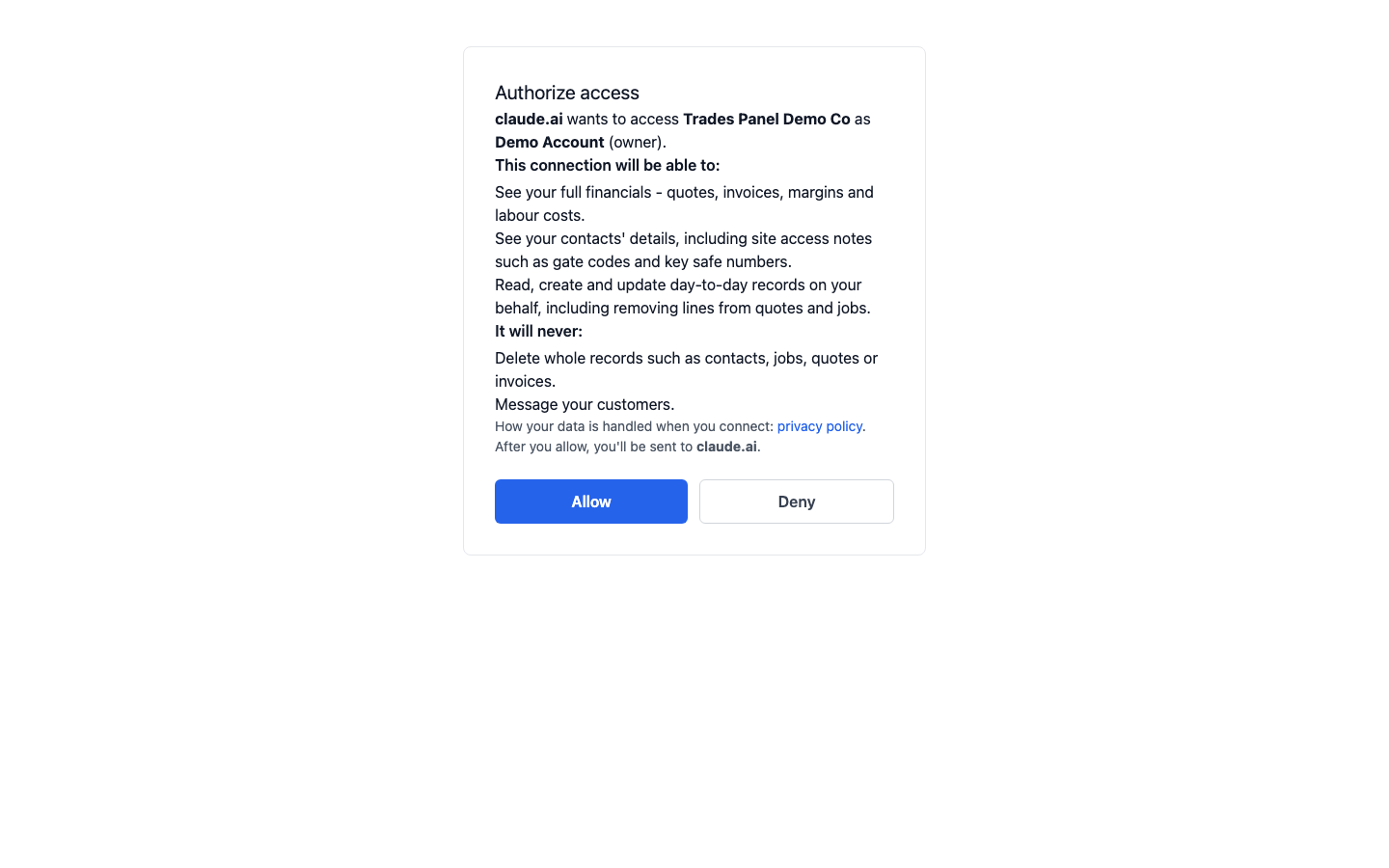
The page names the Trades Panel account Claude will reach and the person it will act as. If you belong to more than one Trades Panel account, check it is the right one. To reach a different account, sign in to that account and connect again.
It lists what the connection can do:
- See your full financials - quotes, invoices, margins and labour costs.
- See your contacts' details, including site access notes such as gate codes and key safe numbers.
- Read, create and update day-to-day records, including removing lines from quotes and jobs.
And what it will never do: delete whole records such as contacts, jobs, quotes or invoices, or message your customers.
Click Deny to leave without connecting. The page links to the privacy policy, which covers how your data is handled once you connect.
If you see a message instead of this page, see Claude Cannot Connect to Trades Panel.
Using Claude with Trades Panel
Ask Claude in plain English, for example "which quotes are still waiting on the customer?" or "add a task to order the skip for the Smith job". Claude asks your permission before it uses Trades Panel. You can change when it asks in Claude's own settings for the connector.
Changes Claude makes take effect straight away, the same as changes made in Trades Panel. They have the same knock-on effects too:
- Removing a line from a job that has been invoiced or scheduled affects those invoices and bookings in the same way. See Build a Job Up: Job Items and Line Items.
- Creating a task, or adding people to one, notifies the people assigned. See Create and Track Tasks.
- A purchase invoice Claude books is saved as approved and counts towards the job's costs. See Record a Supplier or Subcontractor Bill.
Ask Claude how a job is doing and it uses the same budget, incurred and committed figures as the job's Finance tab. See The Job Finance Tab.
Disconnect Claude
Disconnect from Settings > AI connections in Trades Panel, then remove the connector in Claude as well. See Manage AI Connections.
Related articles
- Manage AI Connections - see who is connected, let an admin connect, or disconnect
- Claude Cannot Connect to Trades Panel - the messages that stop a connection, and connections that stop working
- Roles and What Each One Can See - check whether you are an owner or admin
- What CrAIg Can Do - the assistant built into Trades Panel