A job's plan is edited on its Schedule tab. Every change saves as soon as you let go, with an Undo button on the message that confirms it.
Who can do this: owners, admins and office staff.
Before you start: what you can edit depends on the job's planning mode. Planned by line item, you plan each line item and the job item and job bars follow. Planned at job level, you plan the job row only. See Plan Dates and Scheduled Dates.
Draw a plan
- Open the job and click the Schedule tab.
- Point at an empty part of a line item's row. A one-day bar follows the pointer.
- Drag across the days you want, or click once. On a line item with labour hours, a single click sizes the bar from its hours and crew.
On a job planned at job level, draw across the job row instead.
Lay out from labour hours
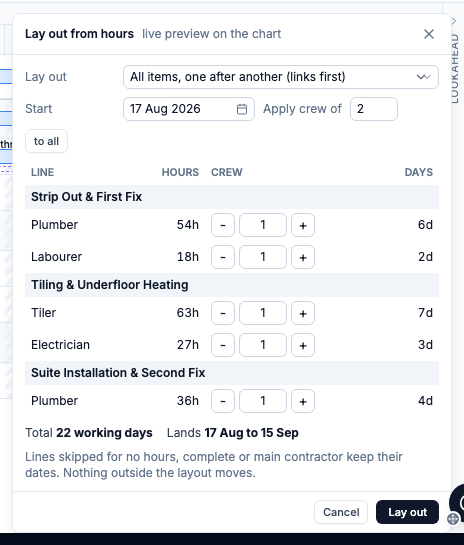
- Click Lay out in the toolbar, or Lay out this item in a job item's editor.
- Choose All items or one job item, and the Start date.
- Set a crew for each line, or use Apply crew of with to all. The bars preview on the chart as you change the numbers.
- Click Lay out.
Line items with no labour hours, complete line items and main contractor line items keep their dates. On a job planned at job level, you set a Team size for the whole job instead.
Move or resize a bar
- Drag the bar to move it. It keeps the same number of working days.
- Drag either end to change the start or the end date. Ends skip non-working days.
- Drag a job item bar to move all of its line items together.
- Drag the job bar to move the whole job, milestones included.
- With a bar selected, the left and right arrow keys move it a day, with Shift a week. Hold Alt to change the end date instead.
Moving a job item later also moves any job items linked after it, and the message names them. Moving a whole job or job item leaves complete line items and main contractor line items where they are.
Change dates or crew in the editor
- Double-click a bar, or select its row and press Enter.
- Change the Start or End date.
- On a line item with labour hours, set the Crew. The bar's length follows: more people, fewer days.
- Click Done.
Dragging a bar longer or shorter changes the crew instead. How many days a crew needs depends on your account's working hours. If the labour hours have changed since the line was laid out, click Re-lay this line to resize it from the new hours.
On a job planned by line item, job item and job dates come from the line items and cannot be typed in. Clear plan in the editor, or Delete on a selected bar, removes the dates.
Link job items
On a job planned by line item, a job item can wait for another to finish.
- Point at a job item's bar. A small circle appears at its right-hand end.
- Drag the circle onto another job item's bar. That job item now starts after this one.
- To add a gap, click the link line and set the Lag in working days. A negative number lets it start that many days early.
You can also add links in a job item's editor with Add link: after..., and remove one with Remove link. Adding or changing a link does not move anything. If the second job item now starts too early, the link turns red and you move it.
Add a milestone
Click Add milestone in the toolbar, or double-click an empty part of the job row. Type a Title and set the Date. A milestone can sit on any day, weekends included. On a job planned by line item, After ties it to a job item so it moves when that job item does. Delete milestone removes it.
Mark a line item complete
Open a line item's editor and click Mark complete. Mark incomplete reverses it.
If the line item has future bookings, a dialog lists them before anything changes.
If a required sign-off form has not been filled in, you can still click Complete anyway with a reason. The line item then shows which form it was completed without.
Undo a change
Click Undo on the message, or press Ctrl+Z (Cmd+Z on a Mac) while the chart is selected. Undo goes back through your last 20 plan changes. Marking a line item complete is not one of them.
Related articles
- Understanding the Job Schedule View - what each bar and colour means
- Plan Dates and Scheduled Dates
- planning and scheduling modes
- How to Schedule and Assign Work Using the Planner
- book people onto the work you have planned
- Your Account's Working Hours - which days count as working days
- Add a Form to a Job - sign-off forms that are required before completion