How much pricing detail a quote PDF shows is set on the quote template, not on each quote. You can show every line item with its price, the quote items with subtotals, the work without figures, or the total only.
Who can do this: owners and admins.
Set the detail level on a template
- Click your avatar at the top right, then Settings.
- Click Quotes, then scroll to Quote PDF Templates.
- Click Edit on the template you want to change.
- In the list of pages on the left, click Quote details.
- Under Quick presets, click the detail level you want, or set each item under Show on quote yourself.
- Click Save at the top right.
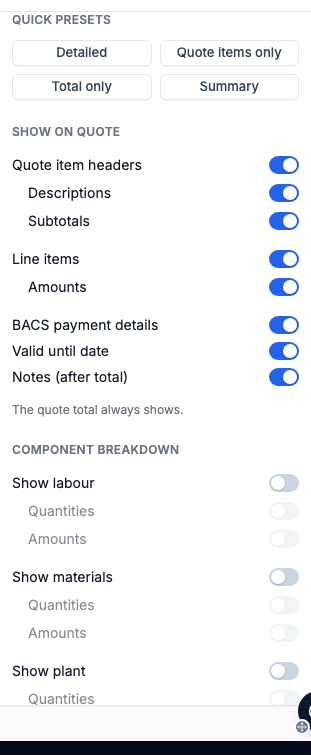
The page in the middle updates as you change each setting, using sample data. To preview one of your own quotes instead, pick it from Preview with at the top of the editor.
The change applies to every quote that uses this template and has not been sent yet. If you leave the editor without clicking Save, Trades Panel asks before discarding your changes.
The quick presets
- Detailed - quote items with their descriptions and subtotals, and every line item with its amount.
- Quote items only - quote items with their descriptions and subtotals. Line items are hidden.
- Summary - quote items and line items, with no subtotals or line item amounts.
- Total only - no quote items or line items.
The quote total always shows. BACS payment details, Valid until date and Notes (after total) each have their own switch under Show on quote.
Show labour, materials and plant
Under Component breakdown, turn on Show labour, Show materials or Show plant to list them under each line item. Each has its own Show quantities and Show amounts switch. They are off by default.
Change how the quote table looks
The Table style section on the same page sets the header style, banded rows, spacing and totals banner.
- Company name size - the size of your company name at the top of the quote. Use Small or Medium if a long name wraps onto two lines.
- Use brand colour - on by default, so the quote uses the brand colour from Settings > Branding. Turn it off to choose a different Accent colour for this template.
See How to Add Your Company Branding to PDFs for your logo and brand colour.
Which template a quote uses
Quotes use your default template, marked Default on its card. To make another template the default, click Set as default on its card.
When you click Download PDF or Send Quote on a quote, you can pick a different template for that quote. The quote keeps the template you picked. See Send a Quote and Convert It to a Job.
To keep your current template and try a different detail level, click Duplicate on its card and edit the copy.
Related articles
- Send a Quote and Convert It to a Job - picking a template when you download or send a quote
- Create a Quote - quote items, line items and their labour, materials and plant
- How to Add Your Company Branding to PDFs
- your logo and brand colour