An enquiry is a request for work that has not become a job yet. Enquiries sit on the Enquiries board in the stages of a pipeline, such as New, Contacted and Quote Sent, so you can see where each one is up to.
Who can do this: owners, admins and office staff. Field staff cannot see enquiries.
Before you start: you need a pipeline. If the Enquiries page shows No Pipeline Configured, see Set Up Enquiry Pipelines and Stages.
Add an enquiry
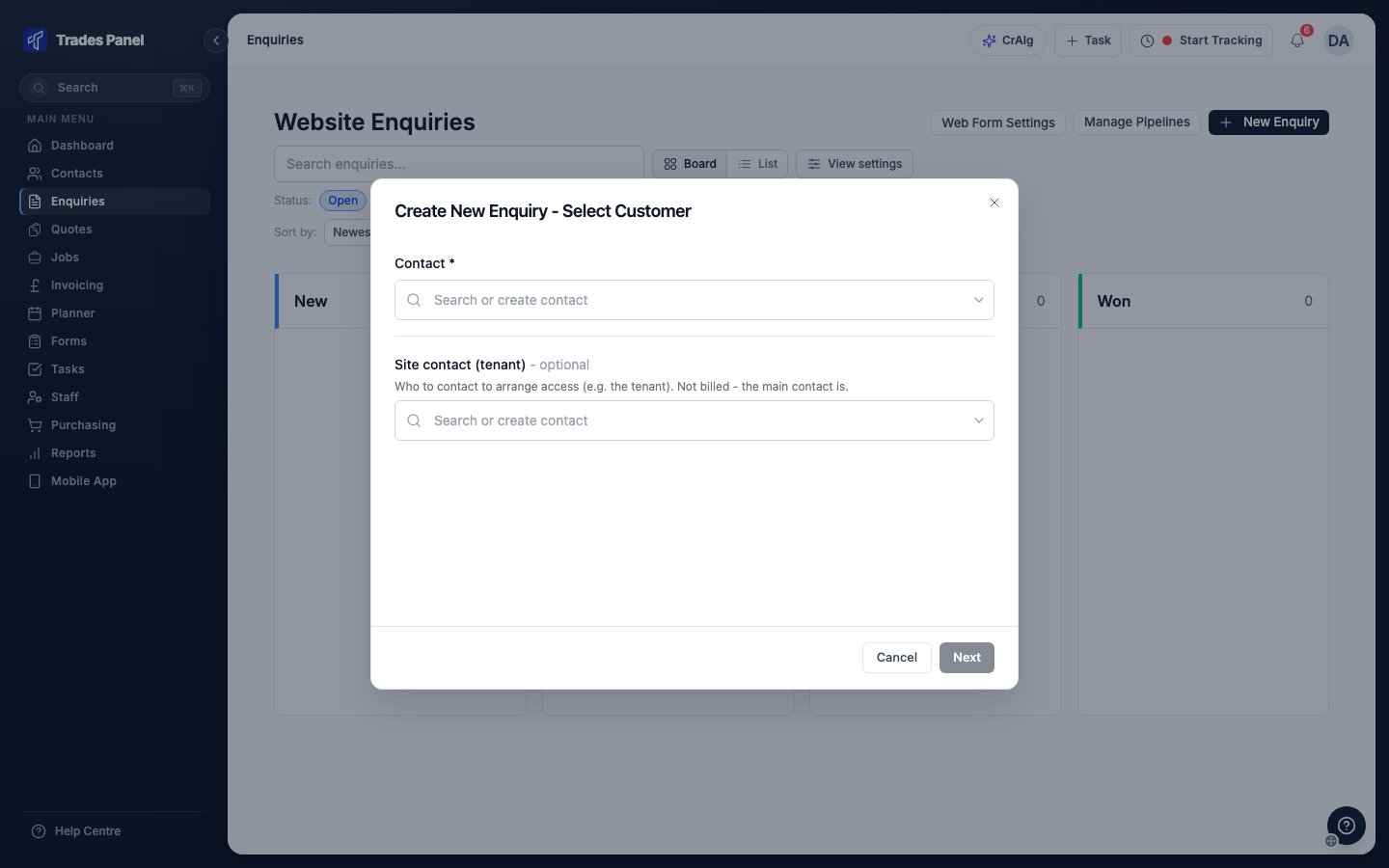
- Click Enquiries in the menu, then New Enquiry.
- Under Contact, search for the customer, or choose Create new contact. If someone else arranges access, such as a tenant, add them as the Site contact (tenant). Click Next.
- Choose the site address, or click Create New Address. If you do not have an address yet, click Skip.
- Enter a Title and, if you like, a Description.
- Received is set to now. Change it if the enquiry came in earlier, and set Due by (optional) if you have promised the customer a date.
- Check the Initial Stage. It starts on the first stage of the pipeline.
- Click Create Enquiry.
The enquiry goes into the pipeline you are looking at. If you have more than one pipeline, you can choose a different one under Pipeline.
You can also add an enquiry from the Enquiries tab on a contact's record. Messages sent through your website contact form arrive as enquiries in the first stage of your default pipeline - see Put a Contact Form on Your Website.
Move an enquiry to another stage
Drag the card into the stage's column on the Board. Or open the enquiry, click Edit, change the Stage and click Save Changes.
An enquiry stays in its stage until you move it. Marking a linked quote as sent lets you move it at the same time.
Mark an enquiry won, lost or abandoned
Use the buttons on the enquiry's card:
- Won marks it won and moves it to the Won stage. Dragging a card into Won does the same.
- Lost marks it lost.
- Abandon enquiry marks it abandoned, for example when the customer stops replying.
The board shows Open and Won enquiries. Lost and abandoned ones stay in their stage but are hidden - click Lost or Abandoned in the status filter to show them. To bring one back, click Mark Open on its card.
Find an enquiry
- Search enquiries... looks through titles, descriptions, customer names and addresses.
- Board shows a column per stage. List shows the same enquiries as a list grouped by stage.
- Filter by Status, and change the order with Sort by. Owner and tag filters appear once enquiries have owners or tags.
- If you have more than one pipeline, switch between them with Pipeline.
Owners, notes and appointments
Click a card to open the enquiry.
- Owners: under Add Owner, choose who is looking after it. An enquiry can have several owners, and anyone you add gets a notification.
- Notes: the notes on the right stay in view on every tab. Type @ to tag a colleague, and they get a notification.
- Documents: files and photos for the enquiry.
- Appointments: click New appointment to book a site visit. It goes on the Planner for you and the staff you assign, and shows on the Appointments tab of the contact you book it for. See Book a Site Visit.
Create a quote or job from an enquiry
Open the enquiry. On the Info tab:
- Under Related Quotes, click Create New. The quote starts with the enquiry's customer, address and title, and is linked to the enquiry when you save it.
- Under Related Jobs, click Create New to raise a job straight away. If the enquiry already has a job, you are asked whether the new one is a Return visit.
- Link Existing links a quote or job you have already created.
A quote linked to an enquiry shows the enquiry's stages beside its actions. Click a stage to move the enquiry. The quote's actions also offer to update the enquiry:
- Mark as Sent lets you choose a new stage, such as Quote Sent.
- Mark as Rejected offers to mark the enquiry Lost.
- Convert to Job and Link & add to job offer to mark the enquiry Won.
Sending a quote by email does not change the stage, so click the stage on the quote. To link a quote that has no enquiry, click + Link or create enquiry on the quote. See Send a Quote and Convert It to a Job.
Adding an enquiry or a quote does not turn a contact into a customer. Raising a job does - see Leads and Customers.
Delete an enquiry
Open the enquiry, click Delete and confirm. This cannot be undone. The enquiry's notes are deleted with it, and so are its documents unless they are also attached to something else. Linked quotes, jobs and appointments are kept.
Related articles
- Set Up Enquiry Pipelines and Stages - creating pipelines and changing stages
- Put a Contact Form on Your Website - enquiries from your website
- Send a Quote and Convert It to a Job - sending a quote and moving the enquiry
- Create a Quote - pricing the work
- Book a Site Visit - appointments with a customer
- Leads and Customers - when a contact becomes a customer