Your plan sets how many people can use your account. There are three paid plans - Crew, Business and Pro - and a Free plan with limits.
Who can change the plan: the account owner only.
The paid plans
Crew, Business and Pro include the same features. The only difference is the number of user seats, plus a higher limit on enquiry pipelines on Pro.
- Crew - 3 user seats. £54.99 a month.
- Business - 10 user seats. £89.99 a month.
- Pro - unlimited user seats. £159.99 a month.
Prices are shown without VAT. Annual billing costs the same as ten months, paid up front. Accounts that joined at an earlier founders price see their own price on the plans page.
Every paid plan includes unlimited jobs and quotes, job finance and documents, geofenced clock-ins, the client portal, the Claude connector and 100 CrAIg credits a month. Crew and Business have up to three enquiry pipelines, and Pro has no limit.
The Free plan
The Free plan has no charge and needs no card. You can choose it when you sign up: on the Choose how to start step, click Continue on Free instead of starting a trial.
An account also moves onto the Free plan when a paid subscription is cancelled, or a free trial ends without one. The Free plan allows:
- 3 users
- 5 jobs and 5 quotes in total
- 1 enquiry pipeline
It includes the Planner, tasks and clocking in and out. Paid features such as job finance, invoicing, the client portal and uploading job documents show an upgrade prompt instead.
Nothing is deleted when an account moves to the Free plan. The limits stop you adding more, and everything you already have stays. If you already have more than 3 users, they all keep their access.
To move from the Free plan to Crew, Business or Pro, the owner clicks Upgrade Plan in Settings > Billing > Overview. See Change or Cancel Your Subscription.
What uses a seat
Every active person on your account uses one user seat, whatever their role. That includes the owner, admins, office staff and field staff.
People you have removed are archived and do not use a seat. See Remove a Member of Staff.
Checking your seats
Your seats are shown in two places:
- Staff > User Management, above the list of users
- Settings > Billing > Overview, under Seats Used
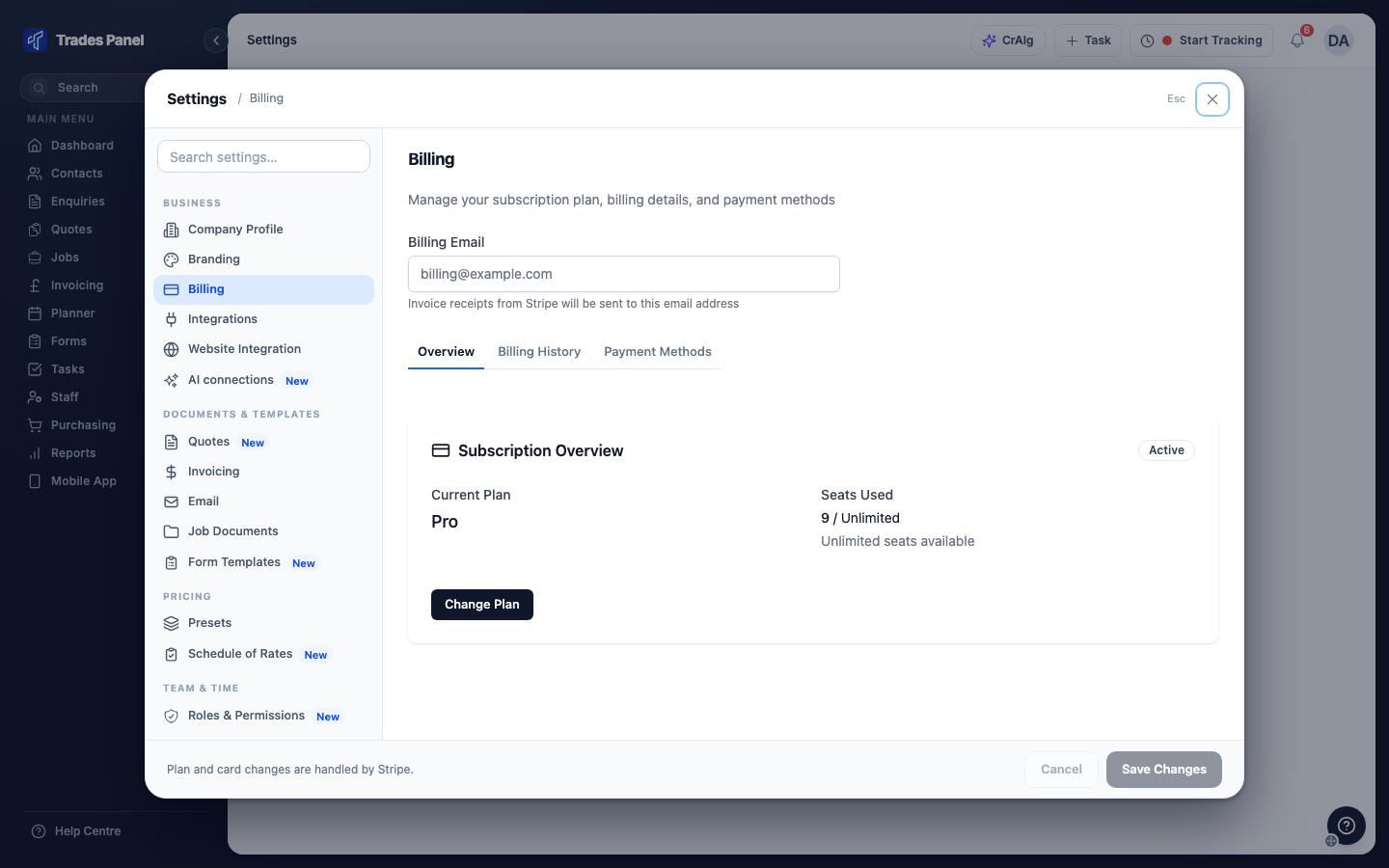
When every seat is in use, Add User and Bulk Upload are greyed out and an Upgrade Plan button appears.
Getting more seats
Seats cannot be bought one at a time. To get more, the owner moves the account to a plan with more seats, or you remove someone who no longer needs access. See Change or Cancel Your Subscription.
Related articles
- Change or Cancel Your Subscription - upgrading, downgrading and cancelling
- Add and Manage Staff - adding people to your account
- Remove a Member of Staff - freeing a seat when someone leaves
- Roles and What Each One Can See - why only the owner can change the plan
- CrAIg Credits - the monthly credits on paid plans