Download your sales invoices and purchase invoices as CSV files, for example to import them into Xero or send them to your accountant. Other records, such as contacts and quotes, are exported from their own pages.
Who can do this: owners and admins.
Export invoices
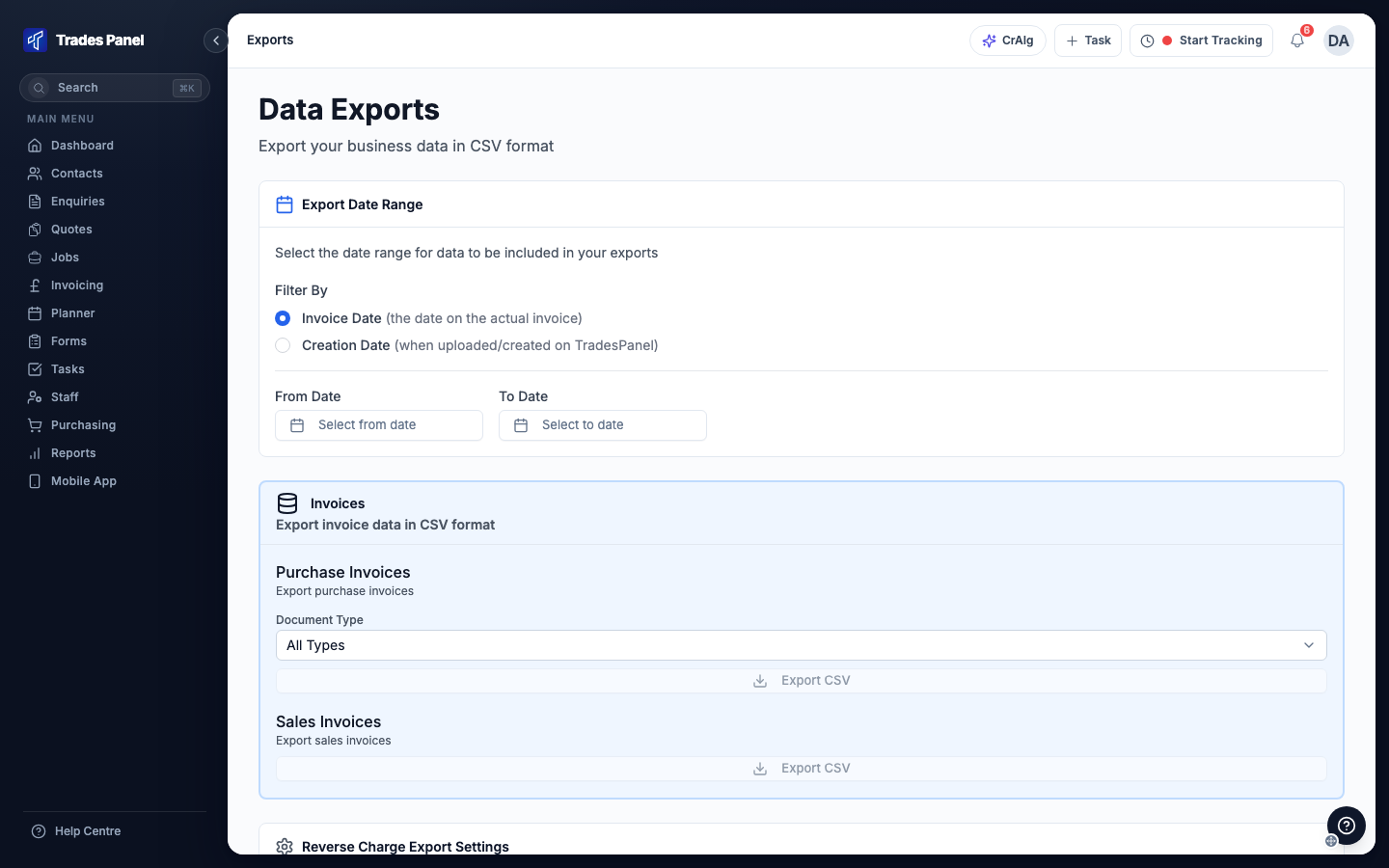
- Click your avatar at the top right and choose Exports.
- Under Filter By, choose Invoice Date to use the date on each invoice, or Creation Date to use the day it was added to Trades Panel.
- Pick a From Date and a To Date. Both dates are included, and Export CSV stays greyed out until both are set.
- Under Purchase Invoices, choose a Document Type if you only want invoices or only receipts.
- Click Export CSV under Purchase Invoices or Sales Invoices.
The file downloads straight away, named after the type and the dates, for example
sales-invoices-2026-08-01-to-2026-10-31.csv. If nothing matches, a message says no invoices
were found and nothing downloads.
What each file contains
Both files are laid out for importing into Xero as bills or sales invoices, with one row per invoice. Each row has the contact, invoice number, dates, the amount before VAT, the tax type and the job number.
Purchase invoice rows end with five CIS columns: CIS rate (%), CIS labour, CIS materials, CIS deduction and Amount payable. They are filled in only for a bill on CIS, and left blank otherwise. The figures for your CIS return are downloaded from the CIS report instead. See Your monthly CIS return.
- Sales Invoices includes every invoice in the range, including cancelled ones.
- Purchase Invoices includes approved bills and receipts only. Bills uploaded from site that are still waiting for approval are left out. See Record a Supplier or Subcontractor Bill.
On sales invoices the tax type follows the VAT rate type on the job. See VAT and CIS on a Job. On purchase invoices it follows the VAT Rate Type set on each bill.
Sales lines use account code 200. Purchase lines use 620 for subcontractors and 300 for suppliers. Some sales invoices with a CIS deduction are split into several rows: on-site labour uses the CIS labour account code, and everything else uses the CIS materials account code.
Set the reverse charge and CIS codes
The Reverse Charge Export Settings card on the same page sets the names and codes the files use. Enter them exactly as they appear in your accounting software, then click Save Settings. They apply to every export from your account.
- Sales Invoice Tax Rate and Purchase Invoice Tax Rate - the tax type for reverse charge invoices. If left blank, they export as No VAT.
- CIS Labour Account Code - the account for on-site labour rows on a split CIS sales invoice. If left blank, 711 is used.
- CIS Materials Account Code - the account for all other rows on a split CIS sales invoice, including off-site labour, materials and plant. If left blank, 712 is used.
Export other records
These are exported from their own pages:
- Contacts - Export CSV on the Contacts page, owners and admins only. See Add and Manage Contacts.
- Quotes - tick quotes on the Quotes list and click Export. See Create a Quote.
- Staff time logs - Export on the time logs report. See Staff Time Logs.
- A job's materials - Download materials list under Finance > Material Budget on the job, as an Excel file, on Crew, Business or Pro. See Download a Job's Materials List.
Single documents download as PDFs from the record itself. See Send a Quote and Convert It to a Job, Raise an Invoice and Record a Payment, Send a Customer a Statement and Approve and Apply a Change Order.
There is no single export of your whole account. If you are closing your account, export what you need first, then contact support for anything else. See Change or Cancel Your Subscription.
Related articles
- Record a Supplier or Subcontractor Bill - adding and approving the purchase invoices that are exported
- Raise an Invoice and Record a Payment - the sales invoices that are exported
- VAT and CIS on a Job - the VAT setting behind the tax type on sales invoices
- Connect Claude to Trades Panel - on Crew, Business or Pro, the owner and admins they allow can ask Claude to list sales invoices instead
- Change or Cancel Your Subscription - before you cancel or close your account